
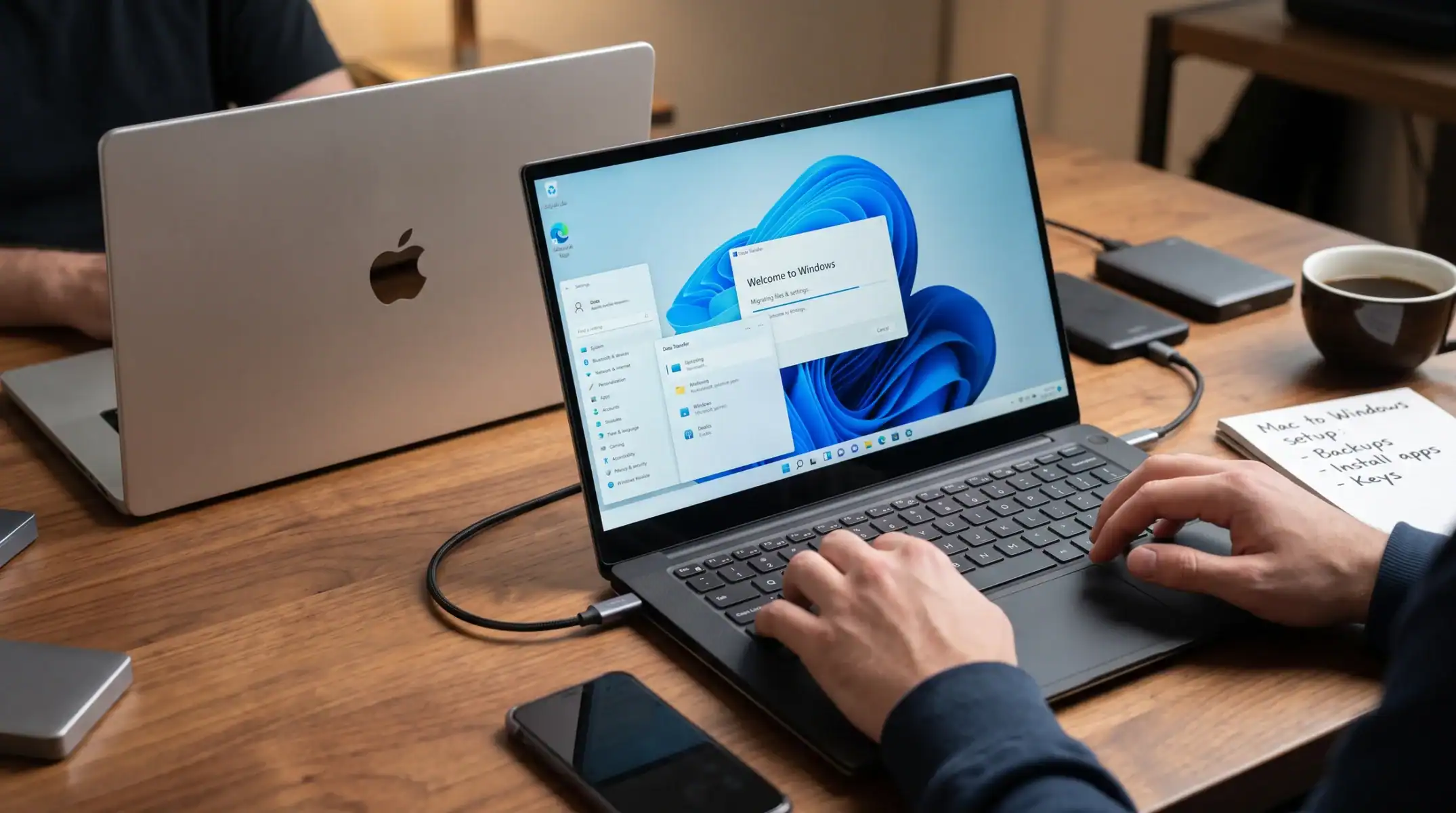
Microsoft is currently paying MacBook Pro owners up to $1,000 in trade-in credit if they buy a Surface Laptop Ultra, on top of whatever the old Mac is worth. That’s a real incentive to finally make the jump, but “switching to Windows” always sounds scarier than it is. Your photos, files and passwords don’t have to get stuck on the old machine.
This guide covers the actual mechanics: installing iCloud on Windows, moving your saved passwords into Edge, handling big files that won’t fit in the cloud, and the trade-in process itself if you’re going the Surface Laptop Ultra route. Menu paths below are verified against Windows 11, version 25H2 (build 26200), the current mainstream release.
What you need and how long it takes
Gather these before you start:
- Your Mac, connected to Wi-Fi, with your Apple Account password and two-factor authentication working.
- Your new Windows PC, signed in with a Microsoft account.
- An external drive if you have more than a few hundred gigabytes of photos or video. Anything smaller usually fits through iCloud and OneDrive without extra hardware.
Budget 30 to 45 minutes of active work for setup. The actual syncing time depends entirely on how much is in your iCloud Photo Library: a few gigabytes finishes in under an hour, but a library in the hundreds of gigabytes is realistically an overnight job, since both photos download on demand rather than all at once.
Step 1: install iCloud for Windows and pick what to sync
Apple’s own app is still the easiest bridge between the two ecosystems, and it’s distributed through the Microsoft Store rather than Apple’s website.
- Open the Microsoft Store on the Windows PC and search for iCloud.
- Click Install, then open the app once it finishes.
- Sign in with your Apple Account.
- Approve the two-factor prompt on a nearby iPhone or iPad.
- Tick the boxes for Photos, Drive, Passwords and Bookmarks, then click Apply.
Check the boxes for Photos, Drive, and Passwords, then click Apply to start the first sync. Once that’s done, iCloud Photos plugs straight into the Windows Photos app, and photos download on demand, so they do not consume full disk space unless you open them. iCloud Drive shows up as a normal folder inside File Explorer, so you can drag files out of it like any other directory.
Step 2: move your saved passwords into Edge
You have two realistic paths here, depending on which browser or password manager you used on the Mac.
If you were mostly a Safari user, the iCloud Passwords feature can sync directly: sign into the iCloud for Windows app using an account with 2FA with an Apple device logged into the same Apple ID, then open the app, select Passwords, and click apply. From there, install the iCloud Passwords extension in Edge so those logins autofill normally.
If you used Chrome, 1Password or another manager, export a CSV from that tool on the Mac first, then bring it into Edge:
- Open Edge and click Settings and more (the three dots), then Settings.
- Click Profiles in the left-hand list, then Import browser data.
- Under Other import locations, click Import next to Import passwords now.
- From the Import from menu, choose Passwords CSV file, click Choose file, and select the CSV.
This matches the official steps: open Microsoft Edge, select Settings, go to Profiles, select Import browser data, go to Other import locations, select Import next to Import passwords now, and choose Passwords CSV file. Delete the CSV afterward; it’s plain text.
Step 3: handle the files too big for the cloud
Video libraries, Logic Pro projects, Lightroom catalogues: none of that is worth waiting on a cloud sync for. An external drive is faster and doesn’t depend on your upload speed.
- If reusing an old drive, back up anything on it first, since formatting erases everything.
- On the Mac, open Disk Utility, select the drive, click Erase, choose exFAT from the Format menu, and click Erase again.
- Drag your files onto the drive from Finder.
- Plug the drive into the Windows PC and copy the files over using File Explorer.
exFAT is the format to use here because both macOS and Windows can write to it, unlike NTFS (Windows-only writing) or Mac’s native APFS.
Step 4: turn on Windows Backup so this doesn’t happen again
Once your data is on the new machine, set up Windows’ own cloud backup so a future hardware switch is less painful.
- Open Settings, then click Accounts, then Windows backup.
- Click Manage sync settings and toggle on Desktop, Documents and Pictures.
- Turn on Remember my apps and Remember my preferences.
- Under Credentials, turn on Wi-Fi networks & passwords.
This is the same path Microsoft documents: in the Settings app on your Windows device, select Accounts, then Windows backup. One caveat worth knowing if you’re moving between two Windows machines rather than from a Mac: a September 2026 update removed PC-to-PC migration, which previously allowed you to transfer files and settings directly from your previous PC when setting up a new Windows PC; Microsoft now points people to Windows Backup instead. That tool backs up to the cloud rather than pulling directly from an old machine, so for a big move, the external drive method above is still the faster option.
Step 5: the Surface Laptop Ultra trade-in, if that’s the destination
Microsoft’s offer runs from October 7 through November 23, 2026 and applies to purchases at the Microsoft Store online in the United States and Canada. The process itself is a few distinct steps, not a simple in-store swap:
- Buy the Surface Laptop Ultra first and wait for it to ship.
- Submit the trade-in online, using your order confirmation as proof of purchase.
- Mail the MacBook within 15 days of completing the online trade-in.
This matches the sequence confirmed by the Microsoft Store Trade-in Program: you buy the Surface Laptop Ultra first, wait for the pre-order to ship, submit the trade-in online with your order PDF as proof of purchase, and mail the MacBook within 15 days. The Mac itself has to meet a few conditions: it must power on, hold a charge, and arrive with its charger and without cracks, liquid damage, or a password lock, which means turning off Find My before you pack it. It’s also worth knowing that it’s one offer per customer, and trade-ins are final, even though Microsoft lets you return the Surface until January 31, 2027. In other words, finish your data migration before you mail the old Mac away, not after.
Common problems and how to fix them
| Problem | Likely cause | Fix |
|---|---|---|
| iCloud for Windows won’t get past sign-in | Two-factor prompt isn’t reaching a trusted device | Keep an iPhone or iPad signed into the same Apple ID nearby and approve the prompt there |
| Photos missing from the Windows Photos app | Initial iCloud sync still running | Give it time; large libraries sync gradually and photos download on demand |
| “Import passwords” option in Edge seems to do nothing | Wrong file type selected | Make sure the exported file is a CSV and you chose “Passwords CSV file” from the Import from menu |
| No “restore from previous PC” option in Windows Backup | PC-to-PC migration was removed in a 2026 update | Use Windows Backup for cloud folders and an exFAT external drive for everything else |
| External drive won’t show up on one of the two machines | Drive is formatted NTFS or APFS | Reformat as exFAT, which both macOS and Windows can read and write |
| Trade-in request gets rejected | MacBook has a crack, won’t hold charge, or Find My is still active | Power it off and back on to confirm it works, remove Find My, and include the original charger |
Surface Laptop Ultra vs. the MacBook Pro it’s chasing
If you’re weighing whether the switch is worth it on hardware grounds, the two machines line up closer than Microsoft’s previous Surface laptops ever did.
| Spec | Surface Laptop Ultra | MacBook Pro 16-inch (M5) |
|---|---|---|
| Starting price | $2,599.99 | $2,999 |
| Chip | NVIDIA RTX Spark, up to 20-core Grace CPU, up to 6,144-core Blackwell GPU | Apple M5 Pro or M5 Max, up to 40-core GPU |
| Unified memory | Up to 128 GB | Up to 128 GB |
| Max storage | 2 TB | 8 TB |
| Display | Mini-LED touchscreen | Mini-LED, no touch |
| OS | Windows 11 on Arm (x86 apps via Prism emulation) | macOS |
| Ships | October 16, 2026 | Available now |
The memory ceiling is the headline number Microsoft is chasing Apple on: both laptops top out at 128GB of unified memory shared between CPU and GPU, with the MacBook Pro also reaching 614GB/s of memory bandwidth and up to 8TB of storage, while Surface Laptop Ultra tops out at 2TB of storage. Microsoft also claims a brightness edge on the display: peak HDR brightness that’s 25% higher than the M5 MacBook Pro’s, though that’s Microsoft’s own figure rather than an independent measurement.
At matching memory and storage configurations, the Surface actually costs more than the MacBook Pro it’s compared against:

Those figures come from a direct spec-for-spec comparison: a 20-core, 48GB, 1TB Surface Laptop Ultra runs $3,999.99 against a 16-inch M5 Pro MacBook Pro at 48GB and 1TB for $3,599, and at 64GB with 2TB storage the Surface costs $4,699.99 against the MacBook Pro’s $4,499. The Surface wins on starting price and ports, the MacBook Pro wins once you’re matching memory and storage tier for tier.
What this means for you
Start the iCloud sync the night before you plan to mail your MacBook away, not the morning of. Photo libraries over 100 GB take hours, and you don’t want to be waiting on a progress bar with a shipping label already printed.
If you’re trading in toward a Surface Laptop Ultra specifically, do the data migration completely before you send the Mac back. Trade-ins are final once accepted, and there’s no undoing a rushed transfer after the fact.
For passwords, don’t rely on memory. Export a CSV from whatever manager you were using on the Mac even if you also set up iCloud Passwords, as a backup path costs nothing and takes two minutes.
And if you’re switching between two Windows machines rather than from a Mac, check your Windows 11 version first. PC-to-PC migration disappeared from Windows Backup in a recent update, so an external drive is now the more reliable route either way.
Sources
- Microsoft: Surface Laptop Ultra
- Microsoft Store: Buy Surface Laptop Ultra – Price, Specs, Windows
- MacRumors: Microsoft Launches $2,599 Surface Laptop Ultra to Take on MacBook Pro
- Windows Latest: Microsoft bribes you with up to $1,000 extra to ditch Apple
- Windows Mode: Surface Laptop Ultra and RTX Spark Dev Box: Prices, Specs and Pre-Orders
- iThinkDiff: Surface Laptop Ultra Takes On the MacBook Pro at $2,599.99
- Wikipedia: Windows 11 version history
- ItsTechBased: Windows 11 25H2 September 2026 Update, Build 26200.9550
- Windows Mode: How to download iCloud for Windows in 2026
- fDayTalk: iCloud for Windows Setup Guide
- Microsoft Support: Import your favorites and passwords in Microsoft Edge
- Microsoft Support: Back up and restore with Windows Backup
- Intel: How to Switch from Mac to Windows PC
Header image: official press image from microsoft.com.